Google Pay™ Integration Guide for Merchants
Requirements and Policies
Merchants must comply with the following requirements:
-
Google Pay API Terms of Service
-
Google Pay Acceptable Use Policy
-
Any other applicable Google Pay terms, policies, and guidelines
In addition, merchants must:
Adhere to the Terms of Service, policies, and requirements established by their Payment Service Provider (PSP)
Ensure their implementation complies with all applicable legal, regulatory, and contractual obligations
Integration
Merchants can integrate with the payment gateway in one of two ways:
- Payment 3DS: Payment processing is handled on the hosted payment page (HPP)
- ServerToServer: Payment processing is handled by the merchant's application using the payment gateway API
Payment 3DS (HPP - Hosted Payment Page)
Merchants using the Payment 3DS (HPP) integration are required to comply with the Google Pay and Wallet API's Acceptable Use Policy and must accept the terms defined in the Google Pay API Terms of Service before enabling Google Pay. Please ensure your integration meets all applicable Google Pay requirements.
Below is an example of our Hosted Payment Page (HPP). It allows customers to complete a payment using either Google Pay or a regular card payment. The appearance of the page can be customized to match the merchant's branding and visual style.
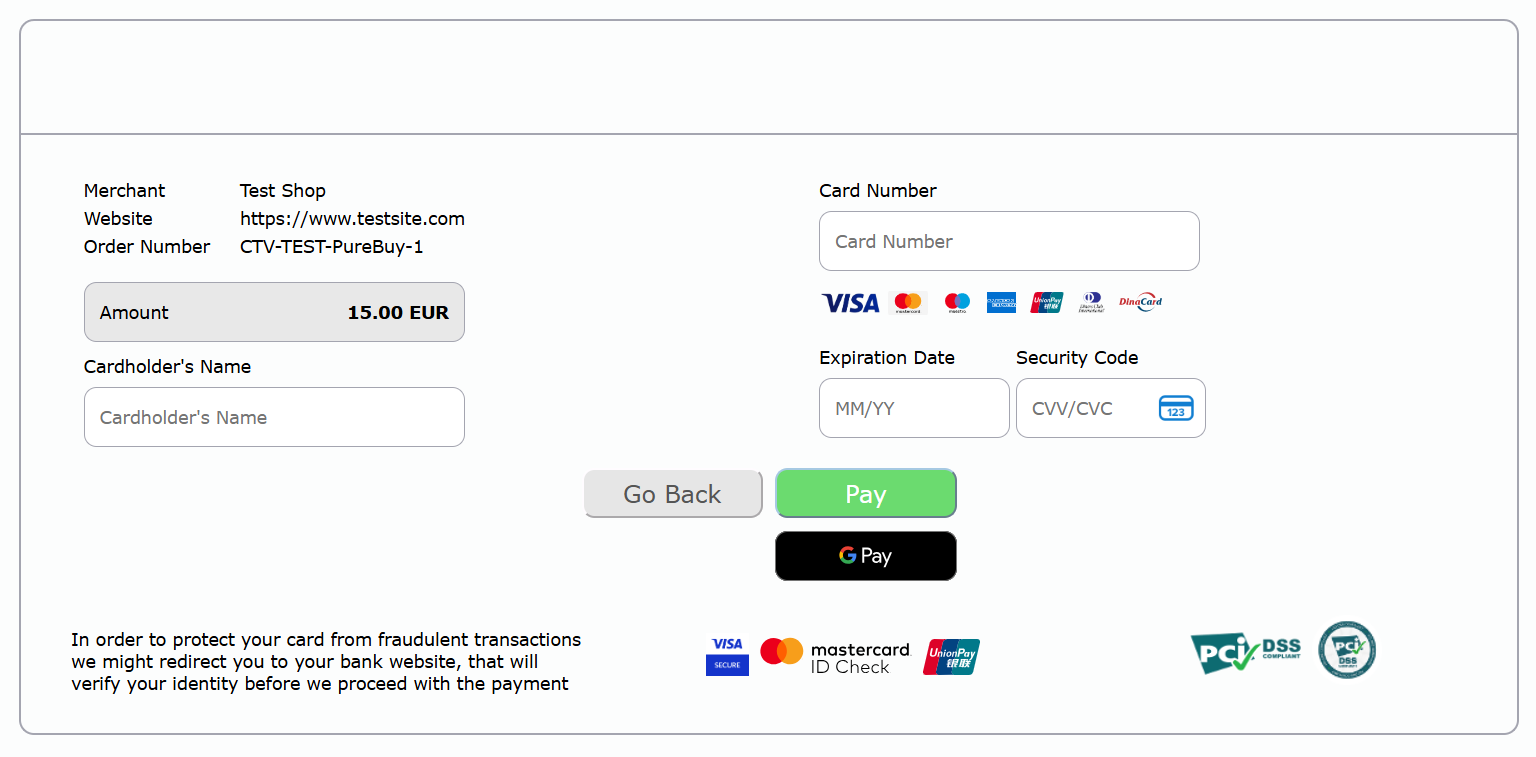
The Hosted Payment Page can either be embedded into the merchant's website using an iframe or displayed as a standalone page by redirecting the customer to the payment gateway's HPP.
Note: In order to enable Google Pay on the Hosted Payment Page, merchants must submit an integration request to the support team by using the application form available
PaymentInitRequest
		{
		  "version": "1",
		  "id": 12345678,
		  "password": "password",
		  "msgVerifier": "msgVerifier",
		  "langId": "USA",
		  "msgName": "PaymentInitRequest",
		  "action": 1,
		  "responseURL": "responseURL",
		  "errorURL": "errorURL",
		  "currencycode": "941",
		  "amt": "15",
		  "trackid": "trackid",
		  "payinst": "",
		  "recurAction": "",
		  "recurid": "recurid",
		  "recurContractId": "123456",
		  "cardSHA2": "Y",
		  "bankStmtFreeText": "123456",
		  "instructedFees": "123456",
		  "notificationFormat": "json",
		  "paymentPageMode": "0",
		  "buyerFirstName": "John",
		  "buyerLastName": "Smith",
		  "buyerUserId": "123456789",
		  "buyerPhoneNumber": "+381 62 123 4567",
		  "buyerEmailAddress": "john.smith@mail.com",
		  "clientIpAddress": "127.0.0.1",
		  "clientUserAgent": "Mozilla/4.0 (compatible; Win32; WinHttp.WinHttpRequest.5), accept=*/*",
		  "clientHttpHeaders": "connection=Keep-Alive content-type=application/x-www-form-urlencoded; Charset=UTF-8 accept=*/* user-agent=Mozilla/4.0 (compatible; Win32; WinHttp.WinHttpRequest.5) content-length=289 host=localhost:8080",
		  "udf1": "AA",
		  "udf2": "BB",
		  "udf3": "CC",
		  "udf4": "DD",
		  "udf5": "EE"
		}
PaymentInitResponse
		{
		  "type": "valid",
		  "msgName": "PaymentInitResponse",
		  "version": "1",
		  "msgDateTime": "2026-06-30 11:18:03.441",
		  "msgVerifier": "msgVerifier",
		  "paymentid": "123456789871161812",
		  "browserRedirectionURL": "browserRedirectionURL"
		}
To request our HPP, send a PaymentInitRequest. The response will contain the browserRedirectionURL field, which specifies the URL to which the customer should be redirected to access the Hosted Payment Page (HPP).
To request this integration, please submit an integration request using the application form available
here.
Our team will guide you through the onboarding process and provide all the necessary documentation and technical assistance required to complete the integration.
ServerToServer - (Payment gateway API)
Merchants using the ServerToServer integration are required to comply with the Google Pay and Wallet API's Acceptable Use Policy and must accept the terms defined in the Google Pay API Terms of Service before enabling Google Pay. Please ensure your integration meets all applicable Google Pay requirements.
ServerToServer integration allows merchants to handle the entire payment flow on their own website while communicating directly with the payment gateway through the API.
To request this integration, please submit an integration request using the application form available
here.
Our team will guide you through the onboarding process and provide all the necessary documentation and technical assistance required to complete the integration.
After successfully testing the ServerToServer integration, merchants must request production access and publish their integration through the Google Pay & Wallet Console by following the official Publish your integration guide.
Endpoint Implementation
Request - pPrq
		{
		  "p_messageVersion": "1.0.5",
		  "messageType": "pPrq",
		  "id": "12345678",
		  "password": "password",
		  "action": 1,
		  "recurAction": "",
		  "recurid": null,
		  "trackid": "trackid",
		  "payinst": "VPAS",
		  "deviceChannel": "02",
		  "googlePayToken": "paymentData.paymentMethodData.tokenizationData.token",
		  "threeDSRequestorID": "123456789",
		  "threeDSRequestorURL": "123456789",
		  "threeDSRequestorStartProtocolVersion": "2.2.0",
		  "threeDSRequestorEndProtocolVersion": "2.3.1",
		  "purchaseAmount": "12300",
		  "msgVerifier": "msgVerifier"
		}
Response - pPrs
		{
		  "startRange": "1234567800000000",
		  "cardCurrencyCode": "941",
		  "p_messageVersion": "1.0.5",
		  "cardType": "M",
		  "threeDSServerStartProtocolVersion": "2.2.0",
		  "dsEndProtocolVersion": "2.2.0",
		  "threeDSServerEndProtocolVersion": "2.2.0",
		  "cardCountryCode": "688",
		  "messageType": "pPrs",
		  "paymentid": "929915200141461778",
		  "msgVerifier": "msgVerifier",
		  "endRange": "1234567899999999",
		  "threeDSMethodURL": "threeDSMethodURL",
		  "acsStartProtocolVersion": "2.2.0",
		  "acsEndProtocolVersion": "2.2.0",
		  "dsStartProtocolVersion": "2.1.0",
		  "threeDSServerTransID": "c766ed1c-f74d-4f2e-ab43-30efb5baf534"
		}
Request - pArq
		{
		  "acquirerMerchantID": "9876543210001",
		  "googlePayToken": "paymentData.paymentMethodData.tokenizationData.token",
		  "billAddrLine1": "billAddrLine1",
		  "billAddrLine2": "billAddrLine2",
		  "billAddrLine3": "billAddrLine3",
		  "billAddrPostCode": "11000",
		  "billAddrCity": "Belgrade",
		  "billAddrCountry": "SRB",
		  "browserAcceptHeader": "text/html",
		  "browserIP": "1.12.123.255",
		  "browserJavascriptEnabled": true,
		  "browserJavaEnabled": true,
		  "browserLanguage": "en",
		  "browserColorDepth": "32",
		  "browserScreenHeight": "1920",
		  "browserScreenWidth": "1020",
		  "browserTZ": "0",
		  "browserUserAgent": "Mozilla/5.0 (Windows NT 6.1; Win64; x64; rv:47.0) Gecko/20100101 Firefox/47.0",
		  "cardExpiryDate": "3512",
		  "cardholderName": "John Smith",
		  "cardSecurityCode": "777",
		  "deviceChannel": "02",
		  "email": "john.smith@mail.com",
		  "mcc": "5964",
		  "messageCategory": "01",
		  "messageType": "pArq",
		  "messageVersion": "2.2.0",
		  "merchantCountryCode": "688",
		  "merchantName": "Merchant Service",
		  "p_messageVersion": "1.0.5",
		  "purchaseAmount": "15",
		  "purchaseCurrency": "978",
		  "purchaseDate": "20190627132429",
		  "purchaseExponent": "2",
		  "purchaseInstalData": null,
		  "recurNewCardExpDate": "205208",
		  "shipAddrLine1": "VIALE EUROPA 21",
		  "shipAddrLine2": "VIALE EUROPA 22",
		  "shipAddrLine3": "VIALE EUROPA 23",
		  "shipAddrCity": "Rome",
		  "shipAddrPostCode": "144",
		  "shipAddrCountry": "ITA",
		  "threeDSServerTransID": "replace-it-with-pPrs.threeDSServerTransID",
		  "notificationURL": "notificationURL",
		  "threeDSRequestorAuthenticationInd": "01",
		  "threeDSRequestorChallengeInd": "01",
		  "threeDSRequestorID": "661",
		  "threeDSRequestorName": "3DS Test Requestor",
		  "threeDSRequestorURL": "threeDSRequestorURL"
		}
Response - pArs
		{
		  "p_messageVersion": "1.0.5",
		  "messageType": "pArs",
		  "acsChallengeMandated": "Required if Transaction Status = C - Length 1 character - Values accepted Y, N.",
		  "acsOperatorID": "acsOperatorUL",
		  "acsReferenceNumber": "acsReferenceNumber",
		  "acsURL": "1234",
		  "authenticationType": "2",
		  "authenticationValue": "authenticationValue",
		  "dsReferenceNumber": "dsReferenceNumber",
		  "dsTransID": "dsTransID",
		  "eci": "2",
		  "transStatus": "Y",
		  "transStatusReason": "1",
		  "transStatusReasonInfo": "string",
		  "acsSignedContent": "string",
		  "acsDecConInd": "1234",
		  "whiteListStatus": "1234",
		  "whiteListStatusSource": "2",
		  "trustListStatus": "1234",
		  "trustListStatusSource": "2",
		  "deviceBindingStatus": "1",
		  "deviceBindingStatusSource": "1",
		  "deviceInfoRecognisedVersion": "2.1",
		  "transChallengeExemption": "5"
		}
Request - pGcq
		{
		  "messageType": "pGcq",
		  "messageVersion": "2.2.0",
		  "challengeWindowSize": "5",
		  "p_messageVersion": "1.0.5",
		  "threeDSServerTransID": "replace-it-with-pPrs.threeDSServerTransID"
		}
Response - pGcs
		{
		  "p_messageVersion": "1.0.5",
		  "messageType": "pGcs",
		  "messageVersion": "2.2.0",
		  "threeDSServerTransID": "c766ed1c-f74d-4f2e-ab43-30efb5baf534",
		  "htmlCreq": "htmlCreq"
		}
Request - pCrq
		{
		  "messageType": "pCrq",
		  "messageVersion": "2.2.0",
		  "htmlCres": "htmlCres",
		  "p_messageVersion": "1.0.5",
		  "threeDSServerTransID": "replace-it-with-pPrs.threeDSServerTransID"
		}
Response - pCrs
		{
		  "p_messageVersion": "1.0.5",
		  "messageType": "pCrs",
		  "messageVersion": "2.2.0",
		  "threeDSServerTransID": "c766ed1c-f74d-4f2e-ab43-30efb5baf534b",
		  "messageCategory": "1",
		  "authenticationType": "2",
		  "authenticationValue": "authenticationValue",
		  "dsReferenceNumber": "dsReferenceNumber",
		  "dsTransID": "dsTransID",
		  "eci": "2",
		  "transStatus": "Y",
		  "transStatusReason": "1",
		  "transStatusReasonInfo": "",
		  "interactionCounter": "2",
		  "challengeCancel": "1",
		  "challengeCompletionInd": "Y",
		  "acsCounterAtoS": "1234",
		  "acsHTML": "string",
		  "whiteListStatus": "1234",
		  "whiteListStatusSource": "2",
		  "authorizationResult": [
		    {
		      "action": 1,
		      "auth": "KVADIW",
		      "amt": "15",
		      "currencycode": "941",
		      "paymentID": "123456789987",
		      "result": "APPROVED",
		      "tranID": "987654321",
		      "trackid": "CTV-TEST-PureBuy-1",
		      "ref": "1122334455",
		      "responsecode": "00",
		      "responsedescription": "Approved",
		      "cardtype": "VISA",
		      "liability": "N",
		      "expDate": "1022",
		      "cardLastFourDigits": 0,
		      "cardCountry": "USA"
		    }
		  ]
		}
First, send a "pPrq" message with the Google Pay token ("paymentData.paymentMethodData.tokenizationData.token") in the "googlePayToken" field. In the "pPrs" response, you will receive the unique transaction identifier ("threeDSServerTransID").
Next, send a "pArq" message to determine whether a challenge is required for the transaction. Include the "threeDSServerTransID" received in the "pPrs" response. If the "transStatus" field has the value "Y", additional step-up authentication (challenge) is required. If the value is "N", no additional step-up authentication is needed.
If a challenge is required, send a "pGcq" message using the "threeDSServerTransID" from the "pPrs" response and receive the corresponding "pGcs" response. Then, send a challenge request ("pCrq") including the same "threeDSServerTransID". The transaction is considered successful if "authorizationResult.result" is "APPROVED" and "authorizationResult.responseCode" is "00".
We support two Google Pay authentication methods, "PAN_ONLY" and "CRYPTOGRAM_3DS", which determine whether step-up authentication is required.
When using "PAN_ONLY", step-up authentication is always required. When using "CRYPTOGRAM_3DS", additional step-up authentication is generally not required, provided that the integration is configured correctly and the payment is authenticated through Google Pay.
Button Configuration on Page
	<!DOCTYPE html>
	<html lang="en">
	<head>
	  <meta charset="UTF-8">
	  <title>HTML example page</title>
	</head>

	<body>
	  <div id="gPayContainer"></div>

	  <script src="index.js"></script>

	  <script async
	    src="https://pay.google.com/gp/p/js/pay.js"
	    onload="onGooglePayLoaded()">
	  </script>

	</body>
	</html>
On the page, we need to define:
- button container ("gPayContainer"): this is where the Google Pay button will be displayed
- JavaScript file ("index.js"): this is where the JavaScript code will be located. This is optional (you can use JavaScript on html page and not use external file)
- load the Google Pay library, and check whether the Google Pay button can be displayed (with function: onGooglePayLoaded())
Merchants must adhere to the
Google Pay Brand Guidelines
and
UX Best Practices
.
Please refer to these documents for additional information.
Setting up Google Pay configuration
These are the parameters that need to be defined in the index.js file.
Tokenization Specification
	const tokenizationSpecification = {
	  type: 'PAYMENT_GATEWAY',
	  parameters: {
	    gateway: 'a360',
	    gatewayMerchantId: 'mechantTestId'
	  }
	};
gateway: This value must be set to 'a360' to identify A360 as the payment gateway.
gatewayMerchantId: Your unique merchant ID used for transaction routing and identification.
Card Payment Method
const cardPaymentMethod = {
  type: 'CARD',
  tokenizationSpecification: tokenizationSpecification,
  parameters: {
    billingAddressRequired: true,
    billingAddressParameters: {
      phoneNumberRequired: true,
      format: 'MIN'
    },
    allowedCardNetworks: ['VISA', 'MASTERCARD'],
    allowedAuthMethods: ['PAN_ONLY', 'CRYPTOGRAM_3DS']
  }
};
tokenizationSpecification: Tokenization Specifaction
billingAddressRequired: Set to true to request the cardholder's billing address (optional)
billingAddressParameters.phoneNumberRequired: Set to true if the cardholder's phone number is required. This parameter is used only when billingAddressRequired is set to true
billingAddressParameters.format: Specifies the billing address format to be returned. This parameter is used only when billingAddressRequired is set to true
MIN: Name, country code, and postal code (default)
FULL: Name, street address, locality, region, country code, and postal code
FULL-ISO3166: Name, street address, locality, region, country code, postal code, and ISO 3166 administrative area
allowedCardNetworks: define what card do you want to support on your site, we supporte: ["VISA", "MASTERCARD"]
allowedAuthMethods: defines which authentication methods are supported, we support both 'PAN_ONLY' and 'CRYPTOGRAM_3DS'
When using PAN_ONLY, step-up authentication is always required.
When using CRYPTOGRAM_3DS, additional step-up authentication is generally not required, provided that the cardholder has already been authenticated.
Google Pay configuration
const googlePayConfiguration = {
  apiVersion: 2,
  apiVersionMinor: 0,
  allowedPaymentMethods: [cardPaymentMethod]
};
allowedPaymentMethods: Card Payment Method
Setting up GPay button
Check if GPay button can be displayed
let googlePayClient;

function onGooglePayLoaded() {
  googlePayClient = new google.payments.api.PaymentsClient({
    environment: 'PRODUCTION'
  });

  googlePayClient.isReadyToPay(googlePayConfiguration)
    .then(response => {
      if (response.result) {
        createAndAddButton();
      } else {
        console.log("Cannot pay with Google Pay");
      }
    })
    .catch(error => console.log('isReadyToPay error: ', error));
}
googlePayClient: declares the Google Pay client variable
onGooglePayLoaded: function that checks whether the Google Pay button can be displayed, If the check succeeds, the function (createAndAddButton()) creates and displays the Google Pay button
environment: defines the environment in which the site will run, we have two 'TEST' (when we are in the development phase) and 'PRODUCTION' (when the site is live)
Create button
function createAndAddButton() {
  const button = googlePayClient.createButton({
    onClick: onGooglePaymentButtonClick,
	buttonRadius: 10,
	buttonType: 'short',
	buttonSizeMode: 'fill'
  });

  document.getElementById('gPayContainer').appendChild(button);
}
createAndAddButton: function that creates the Google Pay button, for additional button customization options, see the Google Pay documentation here
onGooglePaymentButtonClick: defines the function that handles button clicks, For more details, see onGooglePaymentButtonClick
adds the button to the "gPayContainer" element
Click button
function onGooglePaymentButtonClick() {
  const paymentDataRequest = {
    ...googlePayConfiguration,
    merchantInfo: {
      merchantId: 'BCR2DN634341234',
      merchantName: 'Test Shop'
    },
    transactionInfo: {
      totalPriceStatus: 'FINAL',
      totalPrice: '15.00',
      currencyCode: 'EUR',
      countryCode: 'RS'
    }
  };

  googlePayClient.loadPaymentData(paymentDataRequest)
    .then(paymentData => processPaymentData(paymentData))
    .catch(error => console.log('loadPaymentData error: ', error));
}
paymentDataRequest: defines the payment request object (it contains: googlePayConfiguration, merchantInfo and transactionInfo)
merchantInfo: contains the merchant ID and merchant name
- merchantId: This value must be set to the Merchant ID assigned to you when you register in the
Google Pay & Wallet Console
.
- merchantName: The name of your business as it should be displayed in the Google Pay payment sheet.
transactionInfo:
- totalPriceStatus
- ESTIMATED: Total price might adjust based on the details of the response, such as sales tax collected that's based on a billing address
- FINAL: Total price doesn't change from the amount presented to the shopper
- totalPrice
Total monetary value of the transaction with an optional decimal precision of two decimal places
The format of the string should follow the regex format: ^[0-9]+(\.[0-9][0-9])?$
- currencyCode
The ISO 4217 alphabetic currency code
- countryCode
The ISO 3166-1 alpha-2 country code where the transaction is processed
processPaymentData: this is the function that will send GPay token for further processing
function processPaymentData(paymentData) {
  const token = paymentData?.paymentMethodData?.tokenizationData?.token;

	if (!token) {
	    console.error("Google Pay token missing");
	    return;
	}

	$("#googlePayToken").val(btoa(token));
	$("#paymentForm").submit();
};
<body>

  ...

  <form id="paymentForm" action="[will be provided by gateway]" method="post">

    ...

    <input type="hidden" id="googlePayToken" name="googlePayToken" value="" />

    ...

  </form>

  ...

</body>
Add a hidden input field to the payment form to store the Google Pay token. Before submitting the form, set its value to
"paymentData.paymentMethodData.tokenizationData.token". The token will then be submitted to the server as part of the form data.
For a comprehensive guide to Google Pay integration, including advanced configuration options and implementation details, see the
Google Pay Web developer documentation
.
Before going live, review the
Integration Checklist
to ensure that your implementation meets Google's requirements and best practices.